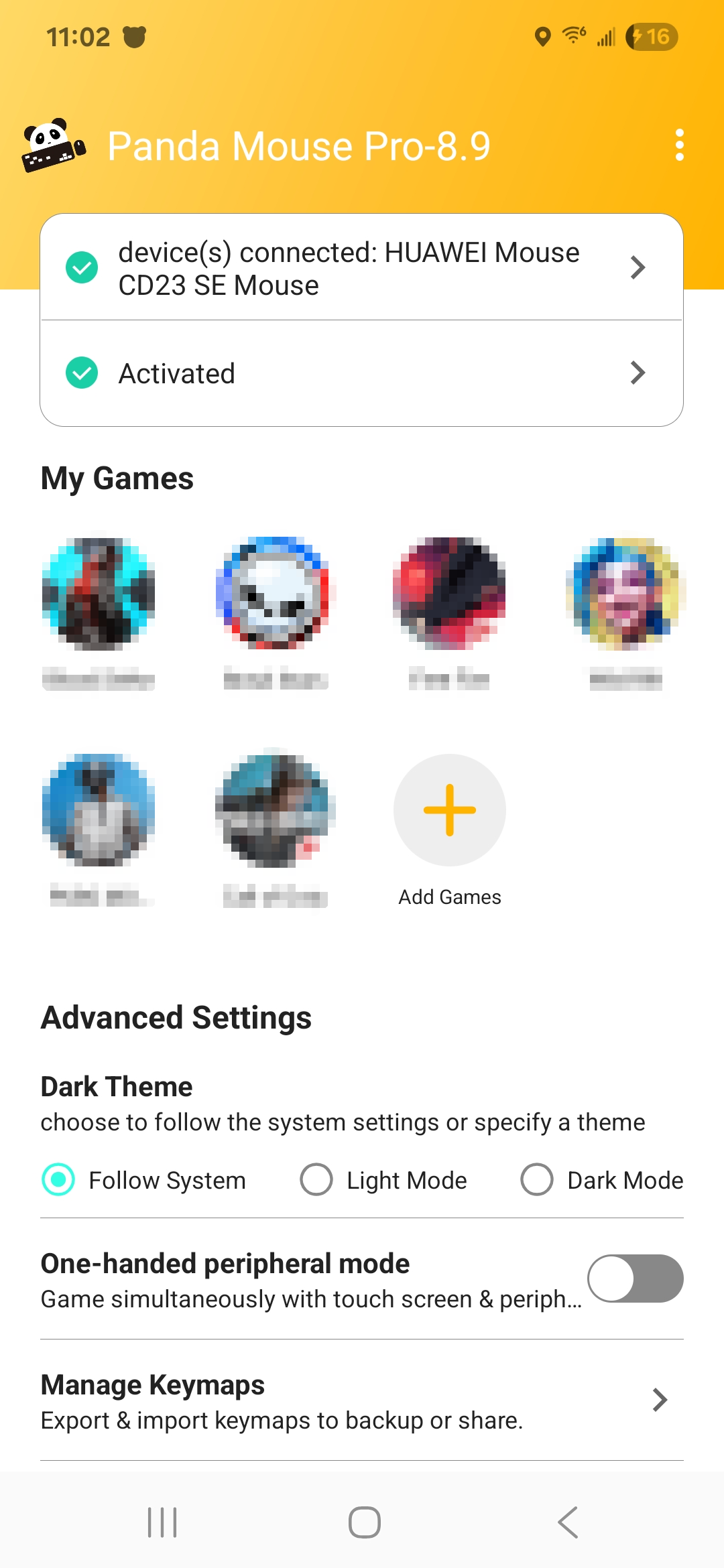
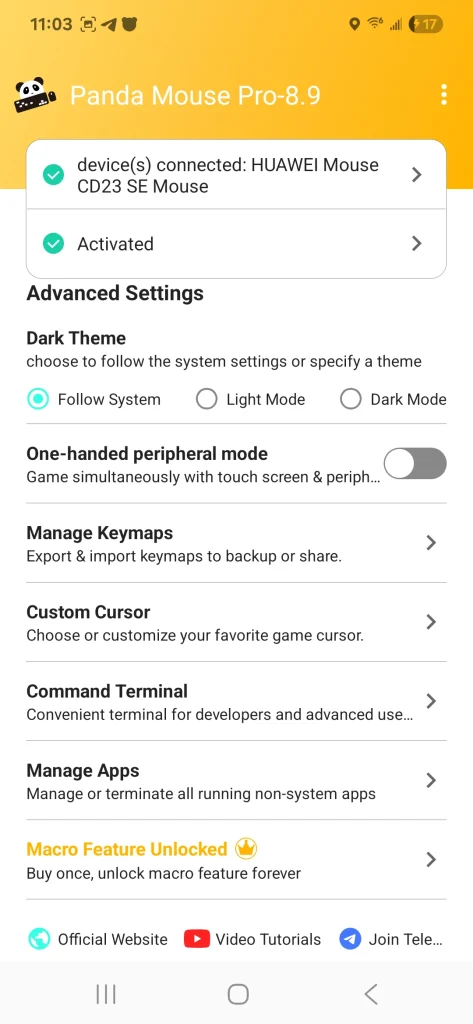
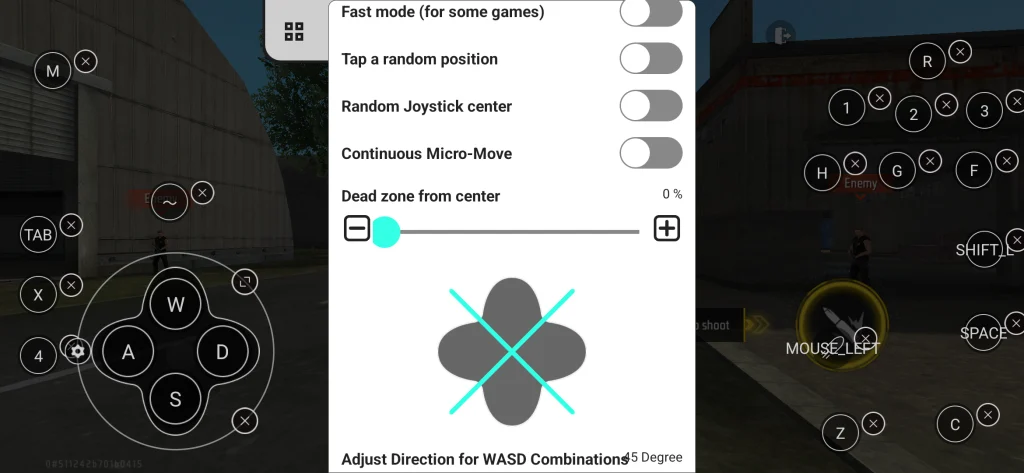
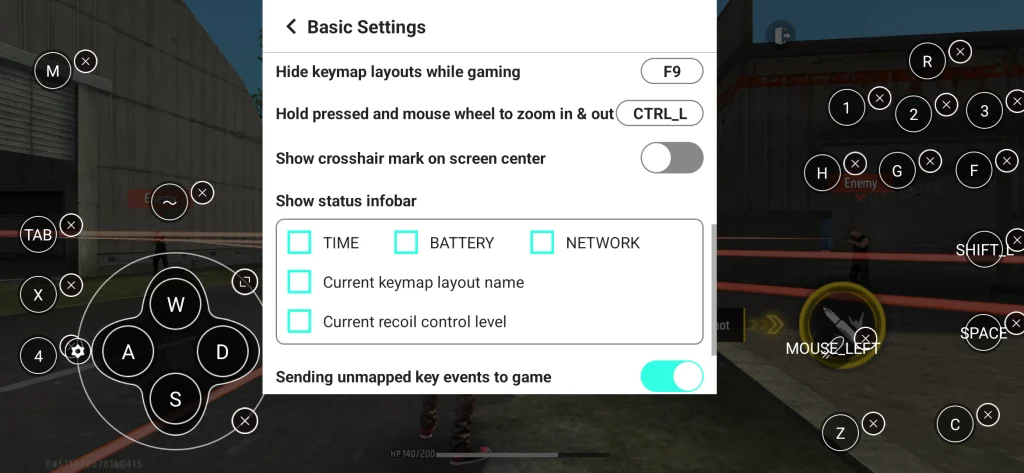
The Panda Mouse Pro Mod APK is designed for Android users who want to map physical mouse and keyboard inputs to on-screen game controls. Instead of tapping every virtual button with your fingers, the app can translate selected keyboard keys and mouse actions into screen touches.
That sounds simple, but there are several details worth understanding before installing it. Compatibility can differ between phones and games, some setups may require extra activation steps and certain games may restrict third-party input tools. Knowing these points first can save a lot of frustration.
Why Players Use Mouse and Keyboard Mapping on Android
Touch controls work well for many mobile games, but they are not ideal for every type of gameplay. Shooters, action titles and games with several on-screen buttons can become easier to control when physical peripherals are available.
A keyboard can give individual actions their own keys. Movement may be assigned to familiar WASD controls while abilities, inventory shortcuts or other commands can be placed on nearby keys. A mouse can provide another input method for looking around, aiming or selecting on-screen areas depending on the game.
This type of setup is particularly useful for people who already play games on a desktop computer and prefer that control style. It can also make gaming on a tablet or large Android screen feel closer to a compact PC setup.
The important point is that mapping software does not automatically make every game work perfectly with a mouse and keyboard. The app still depends on how the game handles touch input and how accurately the controls are configured.
What Panda Mouse Pro Actually Does
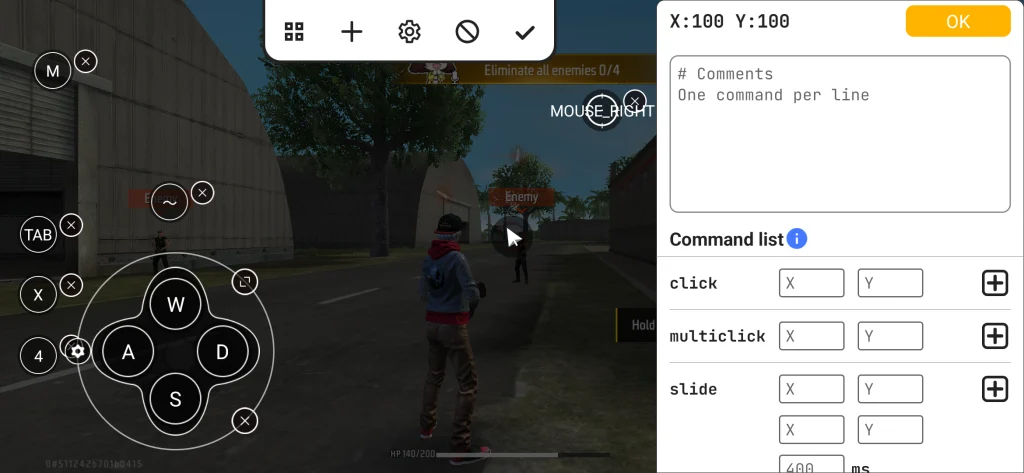
At its core, Panda Mouse Pro functions as a keymapping tool. It allows users to place virtual mapping points over buttons or control areas displayed inside an Android game. A physical key or mouse action can then be linked with that location.
Imagine a game with an on-screen jump button. A user might place a mapping point over that button and assign the space bar to it. Pressing the space bar would then trigger the mapped screen action. The same idea can be applied to movement controls, weapon switching, menus and other actions supported by the particular setup.
This approach is different from native mouse and keyboard support. If a game already officially supports physical peripherals there may be no reason to use a separate mapper. Panda Mouse Pro becomes more relevant when a game was mainly designed around touchscreen controls.
The Setup Is More Important Than the Installation
Installing the application is only one part of the process. Input mapping normally needs to be configured carefully for each game. The basic workflow usually looks like this:
- Connect a compatible mouse and keyboard to the Android device through Bluetooth, USB or an appropriate adapter.
- Complete any activation process required by the installed version of the app.
- Open the game through the supported setup.
- Enter the mapping interface.
- Position keymapping controls over the correct on-screen buttons.
- Assign keyboard keys or mouse commands.
- Test the controls inside a safe game mode before relying on them during competitive play.
The last step matters more than many beginners expect. A control can look correctly positioned while still missing the actual touch area by a few pixels. Screen resolution, display scaling and game interface changes can also affect previously saved layouts.
A few minutes of testing movement, menus, aiming and secondary actions usually produces a much better setup than trying to map every control at once.
Compatibility Can Vary Between Devices and Games
One of the biggest mistakes is assuming that every Android phone and every game will behave the same way. Android versions differ. Phone makers also modify their operating systems and games regularly change their interfaces. Because of this, an input mapper that works properly on one device may need additional adjustment on another.
Before relying on the app, check four things:
- Your Android version and device compatibility
- Whether the game permits external input or mapping tools
- Whether your mouse and keyboard connect reliably
- Whether activation requirements have changed for the app version you are using
Updates matter too. A game update may reposition controls or change how touch input is detected. An Android system update can also affect permissions or accessory behaviour. For that reason, saved control profiles should be treated as adjustable configurations rather than permanent settings.
Is Panda Mouse Pro Mod APK Safe to Use With Games?
The application itself and the rules of a particular game are two separate issues. A game publisher may have its own policy about third-party keymapping software, input emulation or external peripherals. Some multiplayer games also separate touchscreen players from controller users to keep matchmaking balanced.
Before using any mapper with a competitive title, read the game’s current terms, support documentation and input rules. Avoid assuming that an app is permitted simply because it can technically run alongside the game.
Users downloading Android applications from outside an official store should also be cautious. Modified APK files, cracked versions and downloads from unknown websites may contain unwanted software or altered permissions. Use a trusted source and review the permissions requested during installation.
Where Mouse Mapping Works Well
A physical setup makes the most sense when a game has many controls or benefits from repeated directional movement. Consider a player using an Android tablet for an action game. Holding the tablet while pressing several screen buttons may become uncomfortable during a long session. Placing the tablet on a stand and connecting a keyboard can create a more relaxed control arrangement.
Another common situation involves players moving between PC and mobile gaming. Using similar keyboard positions across both platforms reduces the need to relearn basic movement controls every time they switch devices.
However, casual puzzle games, card games and titles built around swiping or multi-touch gestures may gain very little from mouse and keyboard mapping. The best use case depends on the type of interaction the game expects.
Common Problems New Users Run Into
Poorly configured layouts are responsible for many problems that appear to be app failures. One frequent issue is placing mapping points before adjusting the game’s HUD. If the player later changes button size or moves controls inside the game settings the mapping points may no longer line up.
Mouse sensitivity can create another problem. Extremely high sensitivity may make movement difficult to control while very low sensitivity can make aiming feel slow. Changes should be made gradually rather than jumping between extreme settings.
Users should also avoid mapping too many commands during the first setup. Start with movement and the most important actions. Once those feel reliable, add secondary controls.
Connection stability matters as well. An unreliable Bluetooth accessory or poor USB adapter can create delayed inputs even when the mapping software itself is configured correctly.
Panda Mouse Pro vs Native Controller Support
Keymapping software and native controller support solve similar problems in different ways. Native controller support is built into the game by its developer. Buttons are recognised directly and the interface may automatically change when a controller is detected. This is usually the simpler option when it is available.
Mouse mapping translates physical input into touchscreen actions. It offers more flexibility for games that do not provide direct support but requires more configuration.
A Bluetooth gamepad may therefore suit someone who wants quick setup and broad compatibility with supported titles. A mouse and keyboard mapper may appeal more to players who specifically prefer PC-style controls and are willing to spend time adjusting their layout. Neither option is automatically better. The right choice depends on the game and the way the player prefers to control it.
Does Panda Mouse Pro Require Root?
Root requirements can depend on the application version, Android release and activation method. Users should check the current installation instructions supplied with the version they plan to use rather than relying on an older tutorial. Mobile utilities can change their setup process after Android security updates.
Be particularly careful with guides that ask users to disable security protections, install unknown files or grant permissions that seem unrelated to input mapping. If a setup instruction is unclear, verify it before continuing. You can also download Wink-video Retouching Tool Mod APK.
Who Is the App Best Suited For?
The Panda Mouse Pro App is most relevant to Android gamers who strongly prefer physical mouse and keyboard controls but play titles designed mainly for touchscreens.
It may be worth considering if you use a tablet or phone on a stand, regularly play action-oriented games or want more control over keyboard assignments.
It is less attractive for someone who wants completely automatic setup. Mapping takes time and occasional adjustments may be necessary after device, Android or game updates.
Players whose favourite games already support controllers or physical keyboards should check those native options first. Official input support usually involves fewer compatibility concerns.
A Smarter Way to Decide Before Installing
Start with the game rather than the app. Check whether your game already supports a controller, keyboard or mouse. Then review its current rules regarding third-party mapping tools. Confirm that your Android device can connect to the peripherals you want to use and only then decide whether a mapper is necessary.
If you do use Panda Mouse Pro Mod APK, build a simple control layout first. Map movement, one or two primary actions and the most frequently used buttons. Test everything before adding more commands.
That approach makes troubleshooting much easier because you can identify whether a problem comes from the game, the accessory connection or the mapping configuration.
Mouse and keyboard mapping can make certain Android games much more comfortable to control, but the quality of the experience depends heavily on compatibility and careful setup. Treat the app as a configurable input tool rather than a universal plug-and-play replacement for touchscreen controls and you will have a much clearer idea of whether it fits your gaming setup.


